Trip Simulator
The Trip Simulator module provides comprehensive vessel journey visualization and playback functionality within the AOMP. This feature allows users to simulate and analyze vessel movements, track routes, and monitor operational events during specific time periods for training, analysis, and operational review purposes.
Overview
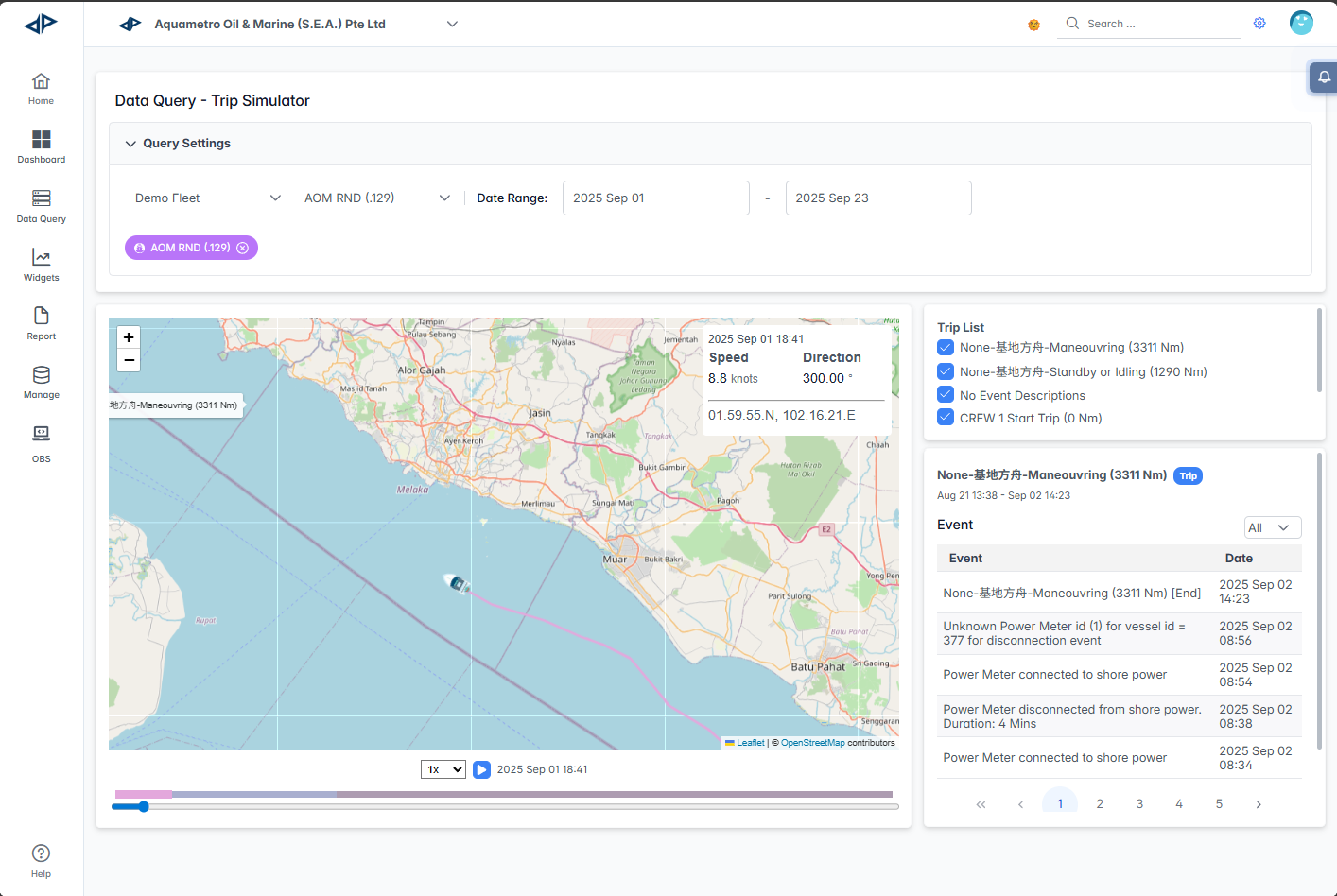
The Trip Simulator interface combines interactive mapping with timeline controls to provide a complete vessel journey replay experience. Users can visualize vessel movements, analyze speed and direction changes, and review operational events along the route.
Interface Components
Query Settings Panel
The Query Settings panel allows you to configure simulation parameters:

- Fleet Selector: Choose the fleet you want to monitor from the dropdown menu
- Vessel Selector: Select a specific vessel from the filtered list, which updates based on the selected fleet
- Date Range: Set start and end dates to define the simulation period
- Start Date: Use the calendar picker to select the beginning of your simulation period
- End Date: Use the calendar picker to select the end of your simulation period
- Apply Filters: The system automatically loads trip data based on your selected criteria
Interactive Map Display
The main map interface shows vessel movements and provides detailed information:
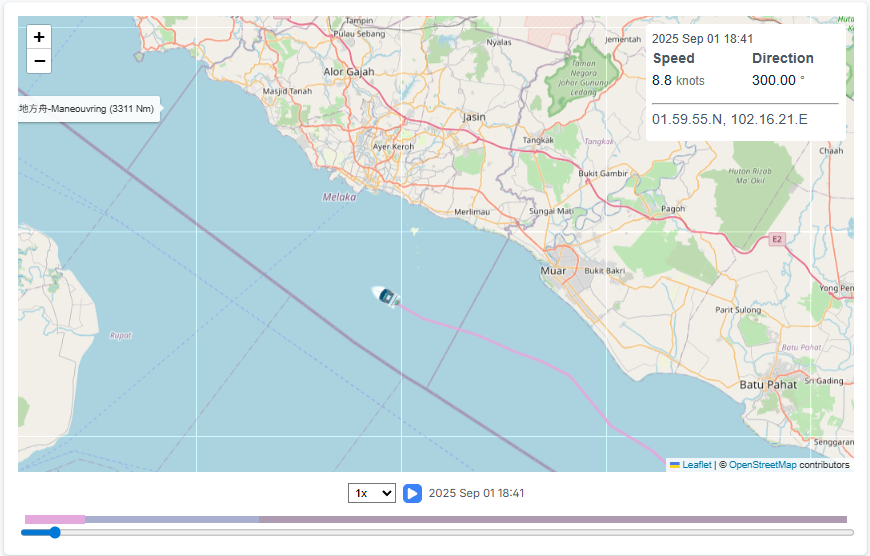
Map Features:
-
Vessel Position Marker: Ship Icon indicating current vessel location during simulation
-
Route Visualization: Complete vessel track showing the journey path
-
Interactive Route Selection: Click on any route line to view detailed events for that segment
-
Geographic Context: Detailed map showing coastlines, ports, and maritime routes
-
Zoom Controls:
+and-buttons to zoom in and out of the map -
Real-time Information Popup: Displays current simulation data including:
- Date and Time: Current simulation timestamp (YYYY MMM DD HH:MM format)
- Speed: Vessel speed in knots
- Direction: Compass heading in degrees
- Coordinates: Precise latitude and longitude position
-
Event Markers on Map: Operational events are displayed directly on the map as popup tooltips
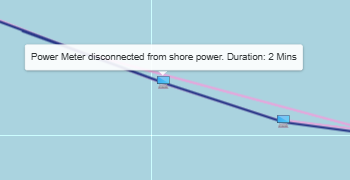
- Event Popups: Hover over event markers to see event details
- Event Information: Shows event type, description, and duration (e.g., "Power Meter disconnected from shore power. Duration: 2 Mins")
- Event Location: Events appear at the precise geographical location where they occurred
-
Timeline Control Bar: The timeline control at the bottom provides simulation playback functionality

- Progress Bar: Visual timeline showing simulation progress with color-coded segments
- Playback Controls:
- Play/Pause button to start or stop the simulation
- Speed selector dropdown (1x for normal speed, with options for faster playback)
- Time Display: Current simulation timestamp
- Timeline Scrubber: Drag to jump to specific points in the journey
Trip List Panel
The Trip List panel on the right displays all trips within the selected time range:
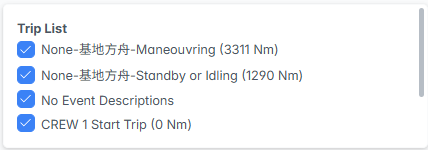
- Trip Segments: Lists each trip name
- Checkbox Selection: Use checkboxes to control the visibility of specific trips on the map
Event Details Panel
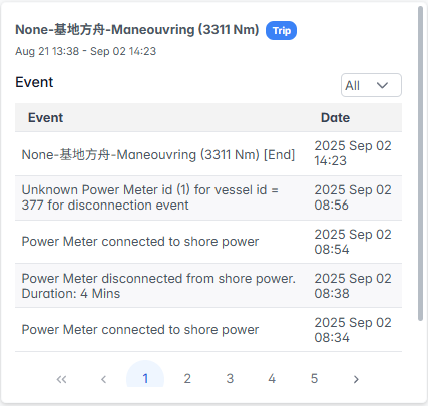
The Event Details panel appears in the bottom right when you click on a route segment on the map:
Activation:
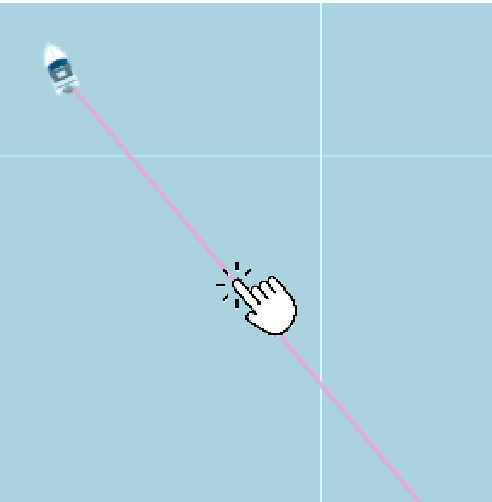
- Click Route on Map: Click on any route line displayed on the map to activate the Event Details panel
Panel Content:
-
Selected Trip Information:
- Trip name and details (e.g., "None-基地方舟-Manoeuvring (3311 Nm)")
- Trip duration and date range (e.g., "Aug 21 13:38 - Sep 02 14:23")
- Trip status indicator
-
Event Filter Controls:

- Event Dropdown: Filter events by type or show "All" events
-
Event List Table: Displays chronological events with the following columns:
- Event: Description of what occurred (e.g., "Power Meter connected to shore power", "Unknown Power Meter Id")
- Date: Precise timestamp when the event occurred (YYYY MMM DD HH:MM format)
-
Event Types: Common events include:
- Power Management Events: Shore power connections/disconnections
- Navigation Events: Route changes, maneuvering activities
- System Events: Equipment status changes, sensor readings
- Operational Events: Crew activities, maintenance actions
-
Navigation Controls:
- Pagination: Use numbered buttons (1, 2, 3, 4, 5) to browse through multiple pages of events
- Quick Navigation: Use the arrow buttons (
<for previous page,>for next page,<<for first page, and>>for last page) to quickly move between pages of results.
The Trip Simulator module enables comprehensive vessel journey analysis and training through interactive visualization and playback of actual voyage data.