Map Navigation
The Map Navigation page provides a real‑time view of vessel positions and recent tracks on an interactive world map. Use it to monitor fleet status, locate vessels, and visually follow their latest sailing paths.
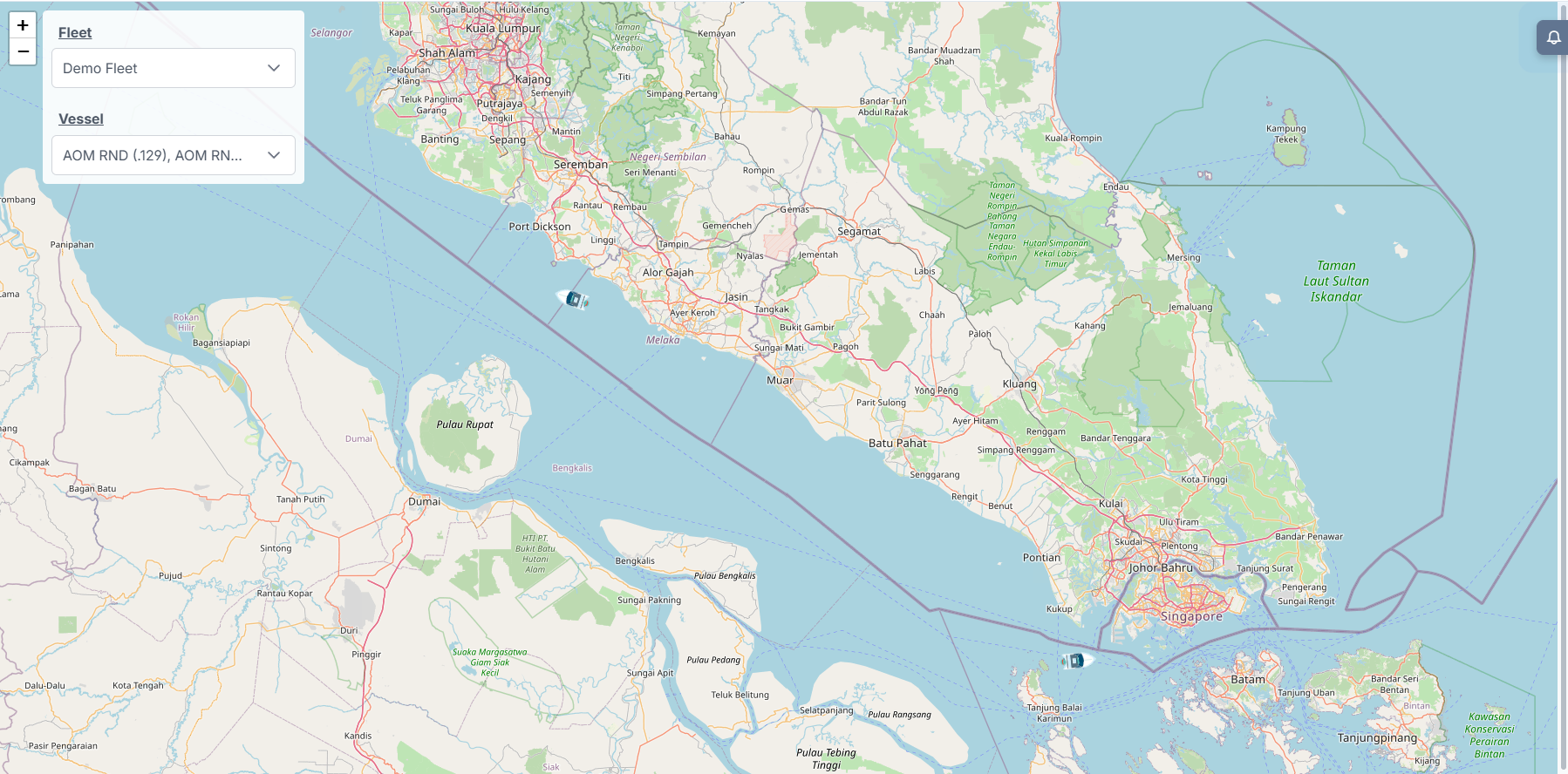
Interface Components
Control Panel (top‑left)
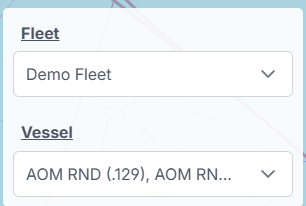
- Fleet
- Select the fleet whose vessels you want to view.
- Vessel
- Multi‑select one or more vessels from the chosen fleet.
Map Canvas
- Pan: click and drag to move the map.
- Zoom: use the +/− buttons or your mouse wheel.
- Vessel icons: show current position on map.
Vessel Popup (hover)
Hovering over a vessel icon displays a compact popup with the vessel's most recent information:
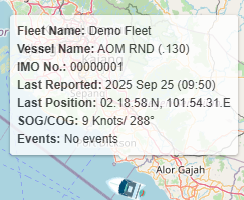
- Fleet Name: The fleet the vessel belongs to
- Vessel Name: Display name as configured in the system
- IMO No.: The vessel IMO number (if available)
- Last Reported: Timestamp of the most recent position/report
- Last Position: Latitude and longitude of the last report
- SOG / COG: Speed Over Ground (knots) and Course Over Ground (degrees)
- Events: Latest event summary or “No events” when none are recorded
Vessel Details Panel (click)
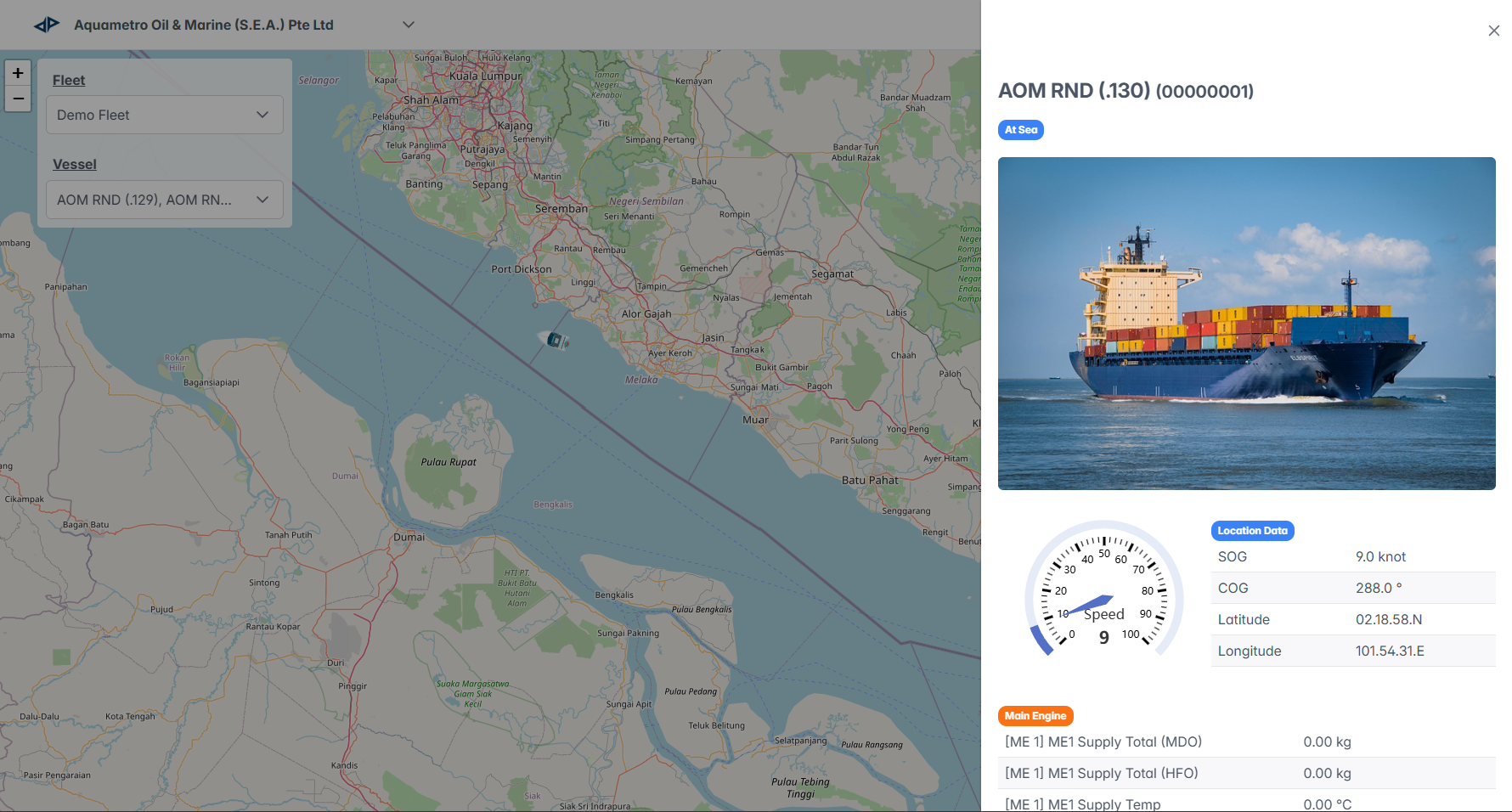
Clicking a vessel icon opens a detailed panel on the right side of the map:
-
Header: Vessel name and IMO number, status pill (e.g., At Sea), and a close (X) button.
-
Vessel Photo: If available, a vessel image is displayed.
-
Speed Gauge: Visual dial showing current speed (SOG) in knots.
-
Location Data: Tabular fields such as SOG, COG, latitude and longitude.
-
Telemetry Groups: Metrics organized by system. Each group (Main Engine, Aux Engine, Other) lists named metrics in rows with their latest value and units. Typical presentation:
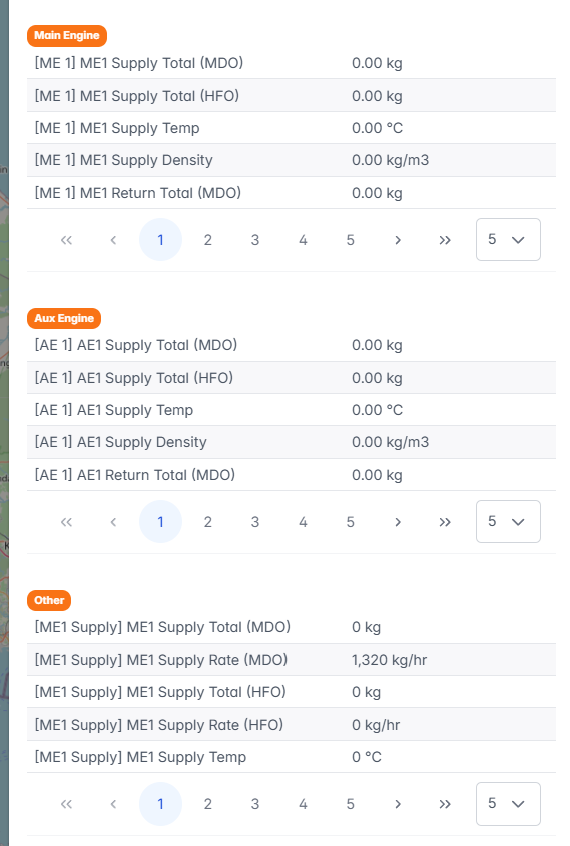
These groups provide a quick snapshot of grouped telemetry; use the panel scroll and pagination to view all available metrics.
This page explains how to use the map navigation feature to view real-time fleet and vessel activity and access detailed vessel information.